4K Monitors and Blue Light: The Resolution Myth, Busted
4K emits no more blue light than Full HD: panel, backlight, nits and settings are what count. A practical guide to settings, software filters and glasses.
· 13 min read
Search “4K monitor blue light” and you will find two opposing narratives: those who claim 4K monitors “emit more blue light because they are more modern and brighter” and those who promise that 4K, being “sharper, tires you less”. They are both wrong, and for the same reason: they attribute to resolution a role it does not have.
Resolution is the number of pixels — 3840×2160 in the case of 4K UHD against the 1920×1080 of Full HD. Blue light is a band of the emission spectrum, generated by the backlight (in LCDs) or by the panel’s emitters (in OLEDs). They are two planes that do not touch: at equal panel, backlight, brightness and calibration, a 4K monitor and a Full HD one emit the same spectrum. Four times more pixels does not mean four times more blue photons: it means smaller pixels.
There is, though, a kernel of statistical truth in the myth, and it is the reason it is worth investigating: 4K monitors are on average newer, brighter and more often geared towards HDR and wide gamut — features that can translate into more absolute emission, if used at maximum. In this guide we separate the factors that really count from those that have nothing to do with it, and build a concrete configuration: monitor settings, software filters, hardware filters and glasses, in order of effectiveness.
The myth: “more resolution = more blue light”
Let us bust it methodically. The light output of an LCD monitor comes from the backlight: white LEDs (a blue chip with a peak around 450 nm plus conversion phosphors) that light the whole panel from behind. The pixels do not generate light: they modulate it, letting more or less of it through the liquid crystals and colour filters.
From here, three logical consequences:
- The number of pixels does not change the source. Whether there are 2 or 8 million pixels in front of the same backlight, the spectrum emitted by the source is identical. What changes is the fineness with which the image is sampled, not the physics of the light.
- At equal nits, the energy emitted is the same. A 4K and a Full HD both calibrated to 200 nits with a D65 white point send towards your eyes, to a first approximation, the same amount of light in the 400–500 nm band.
- If anything, 4K can lower a cause of discomfort that has nothing to do with blue: at equal diagonal and distance, the higher pixel density makes text sharper. Sharpness concerns focusing and readability, not the spectrum — but it is the kernel of truth from which the “4K tires you less” myth sprouted.
The American Academy of Ophthalmology’s general picture holds too: the typical complaints of long computer sessions depend mainly on usage patterns — reduced blinking, wrong distance, no breaks, a grainy or overexposed screen — rather than on blue light itself, on which the AAO keeps an explicitly sceptical stance regarding permanent damage. Anyone noticing recurring discomfort would do well to read the guide to the typical signals of digital eye strain before blaming the resolution.
What really determines a monitor’s blue emission
If resolution is out of the equation, inside it there are four factors, in order of weight:
1. The brightness you set (nits). The dominant lever. The energy emitted in each band scales with luminance: a monitor at 350 nits emits roughly three times the blue light of the same monitor at 120 nits. Modern monitors — 4K included — leave the factory very bright, often at 75–100% of maximum: the first thing to do with any new monitor is to turn it down.
2. The panel and backlight technology. Standard W-LED, quantum dot, mini-LED, OLED: each has its spectral signature. The blue peak of the LED backlight is structural; OLEDs emit as a function of content; some panels carry “low blue light hardware” backlights with reduced emission in the 415–460 nm band. The complete map is in our overview of monitor types.
3. The colour temperature. The standard white point (D65, ~6500 K) contains a full blue component. Moving it towards 5000 K — from the OSD or via software — substantially lowers the energy in the blue band, at the price of a warm cast.
4. The displayed content. On OLED directly (dark pixels = pixels off), on LCD to a lesser degree (the backlight stays on). Eight hours on white backgrounds is not eight hours on an IDE in dark mode.
| Factor | Impact on blue emission | Controllable by the user? |
|---|---|---|
| Resolution (4K vs FHD) | None | — |
| Brightness (nits) | Very high | Yes, always |
| Panel/backlight technology | High | Only at purchase |
| Colour temperature | High | Yes, always |
| Content (light/dark) | Medium (high on OLED) | Yes |
| HDR active | High (pushes the nits) | Yes |
A note on HDR: this is where recent 4K monitors can actually emit more. HDR pushes peak luminance to 600, 1000 nits and beyond. It is not the resolution’s fault: it is that HDR and 4K often travel on the same price tag. For office work and coding, HDR can simply stay off.
The right settings, step by step
A practical configuration for a 4K monitor (valid for any resolution) for long sessions, starting from the free levers:
- Brightness: at the lowest comfortable level. Practical reference: a white sheet on screen should have a brightness similar to a sheet of paper on the desk. In a lit office this often translates to 120–200 nits; in the evening, even less. If the monitor shows only percentages, technical reviews (RTINGS publishes the measurements for hundreds of models) tell you how many nits they correspond to.
- Contrast: leave it at factory values. Raising it does not “compensate” for low brightness; you only adjust it with a calibration pattern.
- Colour temperature: a profile per time of day. By day 6500 K (correct rendering), from the evening 5000 K or the OSD’s “Reader”/“Low Blue Light” mode. RTINGS’ measurements on monitors’ built-in filters confirm that these modes genuinely lower the blue component — with the inevitable yellow cast.
- Software filters for automation. Night Light (Windows), Night Shift (macOS) or f.lux do the same thing as the OSD but follow the schedule by themselves and work on the laptop too. Recommended intensity: the highest you tolerate without the colours bothering you.
- HDR: only when needed. Turn it on for films and games that use it, off for productivity: you avoid pointless luminance peaks.
- Surroundings: never a lit screen in a dark room. A soft, warm ambient light behind or beside the monitor lowers the luminance gap between screen and room — the configuration most people find most comfortable in long sessions.
With these six steps you have cut the controllable part of the emission without spending a penny. What remains — the share of blue band every screen emits anyway, on every device you use — is the territory of filters.
Hardware filters, software filters and glasses: the hierarchy
Hardware filters (in the monitor). Modified-spectrum backlights, certified by bodies such as TÜV Rheinland (which explicitly distinguishes hardware solutions from software ones precisely because they preserve colour rendering) or to the Eyesafe standard (requirements on emission in the 435–440 nm zone and, in recent versions, on the 480–500 nm band, with colour-fidelity constraints). Advantages: zero daily compromises, always on. Limits: chosen only at purchase, and they certify the relative spectrum, not the absolute exposure — which always depends on the nits you use the monitor at.
Software filters. Night Light, Night Shift, f.lux, OSD modes: they lower the blue channel at the signal level. Advantages: free, schedulable, reversible. Limits: a warm cast (incompatible with colour work), partial reduction, and they have to be configured on each individual device.
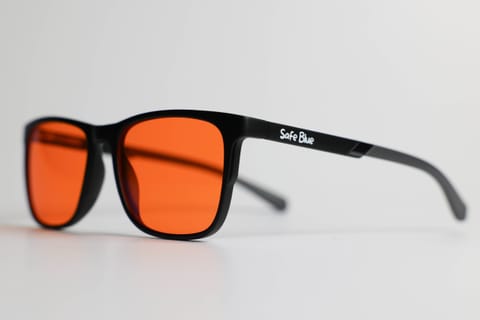
Filtering glasses. They move the filter from the screen to the person. A clear “anti blue light” lens filters little (typically a modest share of the band, concentrated below 420 nm); an orange lens with a sharp cutoff filters a lot: SAFEBLUE Classic, to give concrete numbers, blocks 99% of the 400–500 nm band and 85% of the 500–530 nm band, with 65% visible transmission and a cutoff at 530 nm. Advantages: a single “filter” for monitor, laptop, smartphone and the room’s LED lighting; no alteration of the monitor’s calibration (relevant if you share the screen or alternate colour work and reading). Limits: the warm cast is in your visual field instead of on the screen, and — transparency owed — the 2023 Cochrane review found no clear evidence that filtering lenses lower short-term visual fatigue: the filtering numbers are certain physics, the perceived benefits vary from person to person.
A reasonable strategy for someone spending 8+ hours on a 4K monitor: correct settings always, a software filter from the evening, glasses in the last hours of the day or in multi-screen evening sessions. For specific use cases we have dedicated guides, from PC gaming to programming.
Buying an “eye-friendly” 4K monitor: what to actually look at
If you are about to buy, here is the checklist that counts — resolution excluded, which you will choose for sharpness and workspace:
- Low blue light hardware certification (TÜV Rheinland or Eyesafe): guarantees a reduced spectrum in the critical band without a yellow cast. Mind the wording: the “software solution” certification only indicates the presence of a mode that yellows the image — every screen has that.
- Flicker-free / DC dimming: PWM flicker is a comfort topic separate from blue light, but in long sessions it weighs. Reviews with measurements (RTINGS) report frequency and modulation depth.
- Brightness range towards the low end: a good work monitor must be able to go below 100 nits without losing uniformity — essential for evening use. The figure is found in “minimum brightness” measurements.
- Anti-reflective coating: reflections force you to raise the brightness to overpower them; a well-coated matte panel lets you keep it low.
- Ambient light sensor (on some models): automates the nit adjustment as a smartphone does.
Note what is not on this list: “4K” as a blue light factor. Choose the resolution high for the right reason — sharper text at equal diagonal, more room for side-by-side windows — and manage the spectrum with the tools that actually govern it: panel and backlight at purchase, settings and filters every day.
Frequently asked questions
Does a 4K monitor emit more blue light than a Full HD?
No, not because of the resolution: at equal panel, backlight, brightness and calibration the emitted spectrum is the same. 4K monitors can emit more in practice only because they are often brighter and used in HDR — factors independent of the number of pixels.
So why do I feel more discomfort with my new 4K monitor?
The most likely causes: very high factory brightness (new monitors often leave the factory near maximum), a cold white point, a bigger diagonal that fills more of the visual field, OS scaling that makes the text too small. All correctable from the settings — none depends on the resolution as such.
Does 4K “rest the eyes more” because it is sharper?
The higher pixel density makes text sharper at equal diagonal and distance, and sharp text requires less focusing effort than grainy text. It is a readability benefit, not a spectral one: the blue light emitted does not change. The two things should be kept distinct.
The monitor’s low blue light mode or Windows Night Light?
They do the same thing (attenuate the blue channel by shifting the white towards warm). The OSD mode acts in the monitor, Night Light in the operating system and is scheduled by time. For convenience: Night Light/f.lux for daily automation, OSD if you want a fixed recallable profile. You can combine them, but the effect adds up on the yellow cast too.
Do the low blue light modes ruin colours for photo editing?
Yes, by definition: they shift the white point and compress the blue channel, so they falsify exactly what you need to judge. For colour work the compatible options are the certified hardware filter (reduced spectrum, correct white) or the wearable filter to take off during phases of colour judgment.
How many nits should I set for working?
It depends on the ambient lighting: the practical reference is that a white on screen should not look much brighter than a sheet of paper in the same room. In a typical office that often means 120–200 nits, in an evening setting even 80–100. The exact values for your model are in reviews with instrumental measurements.
Do filtering glasses make sense if the monitor is already Eyesafe certified?
They are different levels: the certification lowers the spectrum at the source on that monitor; the lens filters everything you look at — including the smartphone, which may not be certified — and at much higher percentages. For daytime use the certified monitor may be enough; for multi-device evenings many add the lens. Choosing the right filter strength is explained in the choosing guide.
Is 4K HDR gaming the worst case for blue light?
It is one of the most intense: HDR pushes high luminance peaks, the sessions are long and often in the evening, and game scenes alternate very bright areas. Resolution has nothing to do with it, nits and timing do. Practical compromise: HDR yes but with peak brightness limited by the game settings, a room that is not dark, and a wearable filter if you play late.
Are there 4K monitors with no blue light?
No. Any screen that shows white must emit a blue component: without the 400–500 nm band white does not exist. There are monitors with reduced emission in the most-discussed zone of the spectrum (415–460 nm) — it is what TÜV Rheinland and Eyesafe certify — but “zero blue light” on a colour display is physically impossible.
Does Windows or macOS scaling have anything to do with comfort on 4K?
Yes, and it is a very frequent mistake: a 27” 4K used at 100% scaling produces tiny text, which pushes you to lean towards the screen and squint. Set scaling to 150–200% (or “Retina” on macOS): you recover the sharpness of 4K with correct reading sizes. It has nothing to do with blue light, but it weighs a lot on long sessions — and it is free.
In short
4K resolution does not add a single blue photon: the emission depends on backlight and panel (chosen at purchase), on brightness and colour temperature (under your control every day) and on the content you display. The myth is born of a market correlation — 4Ks are often brighter and HDR — not of physics.
The practical route: nits at the lowest comfortable level, warm white after sunset via OSD or Night Light, HDR only when needed, and at purchase favour hardware certifications (TÜV Rheinland, Eyesafe) and flicker-free. For the share the settings do not cover — and for all the other screens of your day — there is the filter you wear: SAFEBLUE Classic blocks 99% of the 400–500 nm band with 65% visible transmission, at €49.90 with a 30-day return to test it on your real workstation. The numbers are declared and verifiable; the rest is decided by your use experience.
Sources
This article is for information only and does not constitute medical advice. See a qualified optometrist for any vision concerns. SAFEBLUE is a visual comfort accessory, not a medical device.
Related articles
Monitor types and blue light: LCD, OLED, mini-LED compared
How much blue light do LCD, OLED, mini-LED and e-ink emit? Spectral peaks, low blue light modes and TÜV Rheinland and Eyesafe certifications, explained well.
OLED vs LCD: Which Emits More Blue Light?
Emission spectra, the LED backlight's blue peak, the role of brightness and colour temperature: the technical OLED vs LCD comparison, PWM included.
PC Gaming Glasses: Orange Lenses for Late-Night Sessions
Gaming glasses with an orange lens: what really changes for HDR, contrast and in-game colour, and when a lighter lens makes more sense. An honest guide.
How to Choose Blue Light Glasses: Criteria and Data to Ask For
Blocking percentages per nm range, CR-39 or polycarbonate, visible transmission, CE and UV400: the concrete criteria for choosing blue light glasses.