MacBook and Blue Light: XDR Display, Night Shift, f.lux
Liquid Retina XDR, mini-LED and blue light: what Night Shift, True Tone and f.lux really do on macOS and how to set up the Mac for evening work.
· 13 min read
The MacBook is, for many, the centre of the working day — and increasingly of the evening too. Recent Apple displays are among the best panels ever fitted to a laptop: the Liquid Retina XDR of the 14” and 16” MacBook Pro uses a mini-LED backlight capable, according to the official specs, of 1000 sustained nits full-screen and a 1600-nit peak in HDR, with SDR brightness that on recent models reaches up to 1000 nits for outdoor use. Record-setting numbers, which also tell the other side of the coin: more brightness capacity means more energy emitted — blue band included — when it is used without judgment.
Apple provides serious software tools to manage this: Night Shift to warm the white in the evening, True Tone to adapt it to the surroundings, a well-integrated system dark mode. To these is added f.lux, the veteran of software filters, which on macOS still offers something more than the native option. But each tool does one precise thing — and none does everything.
In this guide we analyse the MacBook display from the point of view of blue emission, explain what exactly Night Shift, True Tone and f.lux do (Apple documentation in hand), build a concrete evening workflow for those who work late on the Mac, and clarify where filtering glasses fit into an ecosystem already well stocked with software filters.
The MacBook display: mini-LED, plenty of nits, a family blue peak
Let us start with the hardware. The 14” and 16” MacBook Pro carry the Liquid Retina XDR: an LCD with a backlight made of thousands of mini-LEDs organised into local-dimming zones. The MacBook Air and the base models use the Liquid Retina, an LCD with a traditional LED backlight (400–500 declared nits typical). In both cases the white light comes from LEDs: a blue emitter plus phosphor conversion layers — the architecture that produces the characteristic spectral peak around 450 nm, common to almost all consumer electronics. For the complete picture of how the different technologies generate (and dose) the blue band, see the overview of screen types.
What it means in practice for the MacBook user:
- The backlight is always on over non-black areas. The mini-LED’s local dimming switches off the dark zones (a concrete advantage with dark mode), but on light content the whole panel emits at full tilt, unlike an OLED where every pixel is its own story — the detailed comparison is in OLED vs LCD.
- The brightness ceiling is very high. 1000 SDR nits are for working in the sun, not in the living room: indoors, automatic brightness keeps the panel much lower. The sore point is anyone who disables it and keeps the slider high “out of habit”: on this display that means multiplying the emission several times over what is needed.
- The factory calibration is excellent and cool by just the right amount: a D65 white point, faithful to the standards. Great for colour work, neutral — therefore with a full blue component — for everything else.
Night Shift on macOS: the native filter, with its limits
Night Shift is macOS’s native answer to the evening question. Apple’s documentation describes it without mincing words: it shifts the display’s colours towards the warm end of the spectrum, because “warmer colours are easier on your eyes when you use your Mac at night or in low-light conditions”, and the same support page recalls that evening exposure to intense blue light can interfere with sleep.
It is configured in System Settings → Displays → Night Shift, with three modes:
- Custom schedule: fixed on and off times;
- Sunset to sunrise: follows the geographic location (requires location services);
- Manual activation: from the Control Centre or via Siri, valid until the next day.
The “Colour Temperature” slider sets the size of the shift. What it really does: it attenuates the blue channel at the signal level, genuinely and proportionally lowering the energy emitted in the 400–500 nm band. What it does not do: it does not zero it out (even at maximum a significant share of blue emission remains), it does not touch brightness, and obviously it applies only to the screens connected to the Mac — the iPhone resting next to the keyboard is its own story, and deserves a dedicated analysis.
On perceived effectiveness, the same honesty applies that we apply to glasses: the spectral reduction is measurable, the effects on comfort and rest vary from person to person and the literature offers no guarantees — the 2023 Cochrane review on filtering lenses, by analogy, found no solid evidence of short-term benefit, and for screens’ software modes the picture is no more defined.
True Tone: reading comfort, not blue reduction
True Tone is the most misunderstood feature of the Apple ecosystem. The official documentation describes it thus: multichannel ambient light sensors adjust the display’s colour and intensity “to match the ambient light, so images appear more natural”. It is available on Macs with recent Retina displays, on the Apple Studio Display and Pro Display XDR, and works with some connected external displays too.
The distinction to fix: True Tone chases the surroundings, Night Shift chases the clock. If you work under a warm lamp, True Tone warms the Mac’s white (incidentally lowering a little blue component); under the cold strip lights of a coworking space, it cools it — doing the exact opposite. It is not a filter: it is a perceptual-consistency system, designed so the screen looks like “paper in the room” rather than “a window onto another colour world”.
| Tool | Activation logic | Effect on the blue channel | When to turn it off |
|---|---|---|---|
| Night Shift | Time/sunset | Real reduction, adjustable | Colour work |
| True Tone | Ambient sensors | Variable, follows the room | Colour work |
| Dark mode | Manual/automatic | Lowers the light areas emitted | Never necessary |
| f.lux | Time, with advanced profiles | Real reduction, more aggressive | Colour work |
(Yes, the “when to turn it off” column is monotonous: anything that alters the white point should be switched off when you judge colours. macOS automatically disables some adjustments in specific reference workflows, but the practical rule stays: grading and photo editing with a neutral screen, the rest of the day with filters on.)
f.lux on Mac: what it adds over Night Shift
f.lux has existed since 2009, runs on macOS too and is free for personal use. The official description is simple: it adapts the display’s colour to the time of day, “warm at night and like sunlight during the day”. Over Night Shift it offers three extra things:
- More extreme temperatures. Night Shift has a deliberately cautious range; f.lux goes much lower (down to “candlelight” tones), for anyone wanting a drastic evening reduction of the blue component.
- Finer transitions and profiles: gradual transition curves tied to the real sunset, profiles for phases of the day, shortcuts for temporary disabling.
- Cross-platform consistency: the same logic on Mac, Windows and Linux — useful for anyone alternating between different machines.
The limit is the same as any software filter: beyond a certain intensity the image goes frankly orange, and the reduction is partial and confined to that device anyway. f.lux at maximum is visually comparable to wearing a coloured lens — with the difference that you take the lens off in a second, it keeps the screen calibrated for anyone sharing it in screen sharing, and it works on everything that is not the Mac too.
Evening workflow on Mac: the complete configuration
Let us put it all together in a concrete routine for someone working on the MacBook after dinner too:
Permanent baseline (once only):
- Night Shift scheduled “sunset to sunrise”, slider towards “More Warm” as much as you tolerate;
- automatic brightness on (System Settings → Displays) and True Tone on for general work;
- appearance set to “Auto” so dark mode comes in by itself in the evening — on the mini-LED the dark interface zones genuinely switch off the local backlight;
- f.lux instead of (or in addition to) Night Shift if you want more aggressive evening temperatures than Apple allows.
Every evening, three ten-second checks:
- the brightness slider: in a dim room, the Liquid Retina XDR is very comfortable even below 40%; if the screen “lights up the room”, it is too high;
- the ambient light: never the screen as the only source — a warm lamp on behind or beside the Mac;
- HDR and content: HDR playback pushes peaks up to 1600 nits on highlights; for evening films, SDR viewing at contained brightness is the conservative choice.
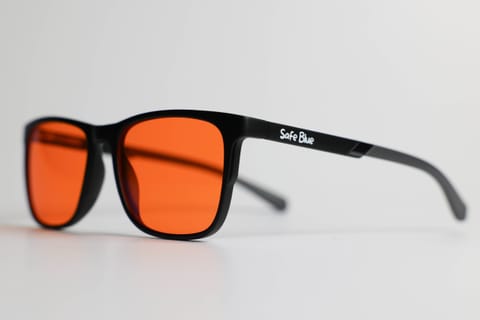
The wearable piece. Everything above lowers; nothing above genuinely filters the 400–500 nm band drastically, and nothing covers the iPhone, iPad and TV that flank the Mac in the typical evening. It is the natural entry point of glasses: an orange lens with a cutoff at 530 nm like SAFEBLUE Classic blocks 99% of the 400–500 nm band and 85% between 500 and 530 nm (65% visible transmission), on whatever screen you are looking at, without touching the Mac’s calibration. A typical use pattern for someone working remotely until late: software filters all day, glasses in the last two or three hours — we described the full routine in the remote-work guide. And it bears repeating: the filtering numbers are declared physics; on comfort and rest the scientific evidence stays cautious (Cochrane 2023 found no clear evidence of short-term benefit), so the only test that counts is your own trial week.
And the external displays connected to the Mac?
A real Mac workstation often has an external monitor, and that is where the holes open up in the net of software filters:
- Night Shift applies to external displays too managed by macOS, but the result depends on the monitor: the adjustment happens on the signal, and on uncalibrated panels the colour effect can turn out different from that of the built-in display;
- True Tone on external displays works only with supported models (Apple lists the Studio Display, the Pro Display XDR and some selected displays, directly connected): on the average third-party monitor, no sensors, no adaptation;
- the monitor OSD’s low blue light modes work independently of macOS: if you combine them with Night Shift, the effects (and the yellow casts) add up;
- the external monitor’s brightness does not follow the Mac’s barring compatible monitors: it has to be adjusted by hand, and it is often the forgotten piece of the workstation — a well-configured MacBook at 120 nits next to a 27” blasting 350.
The moral: the more screens make up the workstation, the less per-device filters scale, and the more rational the filter you wear becomes — which does not even know how many screens you have.
Frequently asked questions
Does the MacBook Pro’s mini-LED display emit more blue light than an OLED?
It depends on conditions. At equal content and nits, the differences lie in the spectrum and the architecture: the mini-LED remains an LCD with an LED backlight (structural blue peak, zones off only on dark areas), the OLED emits per pixel. But the Liquid Retina XDR can push to much higher brightness: used at maximum, it emits more blue energy in absolute terms than an OLED at typical brightness. As always, the settings weigh more than the label.
Does Night Shift on Mac really lower blue light?
Yes: it shifts the white point towards warm by attenuating the blue channel, and the reduction is proportional to the intensity set. It is not a total filter, though — even at maximum a relevant share of emission remains in the 400–500 nm band — and it does not act on brightness, which has to be managed separately.
Should I keep True Tone on or off?
For general work: on, it makes reading more natural by adapting the white to the surroundings. For photo editing, grading and any colour judgment: off, together with Night Shift and f.lux, because it alters the reference white point. Do not expect a systematic blue reduction from True Tone: it is not its job.
f.lux or Night Shift on macOS?
Night Shift is enough for most people: native, stable, schedulable. f.lux is worth it if you want more extreme evening temperatures, transitions tied to the real sunset or consistency with Windows/Linux machines. They can also run side by side, but usually if you install f.lux you turn off Night Shift to avoid double adjustments.
Does macOS dark mode lower the display’s emission?
On the Liquid Retina XDR yes, tangibly: the mini-LED zones behind the dark areas of the interface dim or switch off, lowering overall emission. On MacBooks with a traditional backlight the effect is smaller (the backlight stays on), but the ratio of light to dark areas on screen still affects the total light you receive.
How low should I keep the MacBook’s brightness in the evening?
The practical reference: in a dim room the screen should not look like a source of lighting. On the built-in display that often means staying below 40–50% of the slider. The simplest way is to let automatic brightness handle it and correct downward if needed; the “right” value is the lowest at which you read without effort.
Do filtering glasses make sense if I already use Night Shift and f.lux?
They cover different spaces: software filters partly lower the blue of the Mac alone; the orange lens cuts 99% of the 400–500 nm band on Mac, iPhone, external monitor and the room’s lighting together. People who work late on several screens often use both levels. Whether the effect is worth it for you, only the direct trial says — it is why the 30-day return matters.
Can I use the Mac for colour work and still manage blue light?
Yes, by separating the moments: a neutral screen (Night Shift, True Tone and f.lux off) during colour judgment, filters reactivated for everything else. Glasses lend themselves well to this scheme precisely because you take them off in a second without touching the calibration: lens on for writing emails and code, lens off for grading.
Is the MacBook Air better or worse off than the Pro on this front?
The Air’s Liquid Retina has a lower maximum brightness (about half the SDR ceiling of recent Pros): at equal habits, the worst possible “worst case” is less extreme. The background spectrum is similar — LED backlight — and all the software tools (Night Shift, True Tone on supported models, dark mode, f.lux) work the same way.
In short
MacBooks carry some of the best displays around, with brightness reserves designed for the sun and a software kit — Night Shift, True Tone, dark mode, plus third-party f.lux — that lets you manage the blue component of evening work well, provided you understand who does what: Night Shift genuinely filters (partly), True Tone adapts and that is all, dark mode helps above all on the mini-LED, and brightness remains the most important lever of all.
The recommended configuration costs ten minutes: Night Shift from sunset, automatic brightness, Auto appearance, warm ambient light. For the last hours of the day — when Mac, phone and external monitor pile up at the desk — the simplest complement is the wearable filter: SAFEBLUE Classic blocks 99% of the 400–500 nm band with 65% visible transmission, €49.90 and returnable within 30 days to try it on your real workflow. SAFEBLUE is a visual comfort accessory, not a medical device: an optical filter with declared numbers, to judge with the same pragmatism with which you chose the Mac.
Sources
This article is for information only and does not constitute medical advice. See a qualified optometrist for any vision concerns. SAFEBLUE is a visual comfort accessory, not a medical device.
Related articles
iPhone and Blue Light: Night Shift and True Tone Tested
What Night Shift, True Tone and dark mode really do about the iPhone's blue light, why the 30 cm distance matters and when glasses help.
Monitor types and blue light: LCD, OLED, mini-LED compared
How much blue light do LCD, OLED, mini-LED and e-ink emit? Spectral peaks, low blue light modes and TÜV Rheinland and Eyesafe certifications, explained well.
OLED vs LCD: Which Emits More Blue Light?
Emission spectra, the LED backlight's blue peak, the role of brightness and colour temperature: the technical OLED vs LCD comparison, PWM included.
Glasses for Remote Work: Visual Comfort Working from Home
Remote-work glasses with an orange lens: the home desk, back-to-back calls, evenings with no boundary. Visual ergonomics and where the filter fits at night.